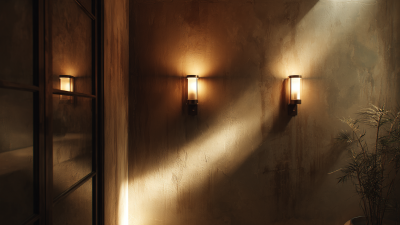
Good lighting can change how a workstation feels within minutes. It affects visual comfort, concentration, posture, and the small decisions made during a busy day. Workstation Lighting is not simply a matter of choosing the brightest lamp. Glare, screen reflections, harsh shadows, and uneven brightness can quietly increase eye strain.
This guide presents ten practical lighting tips for a more productive workspace. It considers daylight, monitor position, task lamps, color temperature, and room balance. A window may provide pleasant natural light, yet direct sunlight can turn a screen into a mirror. A desk lamp can improve detail work, but poor placement may cast shadows across the keyboard. Small adjustments matter. Move the lamp beside your dominant hand, then test it while writing. Lower the screen slightly if overhead fixtures reflect across its surface.
Personal experience also matters. A setup that feels comfortable for one person may irritate another after two hours. That part is easy to underestimate. Your eyes, schedule, room, and screen habits all influence the result. Reliable ergonomic guidance generally favors even, adjustable illumination rather than extreme brightness. Still, no single formula fits every workstation. These tips encourage observation, testing, and honest revision. Notice when you squint, lean forward, or avoid a corner of the desk. Those behaviors may reveal lighting problems before discomfort becomes routine. A better-lit workspace should support sustained attention without demanding constant effort.
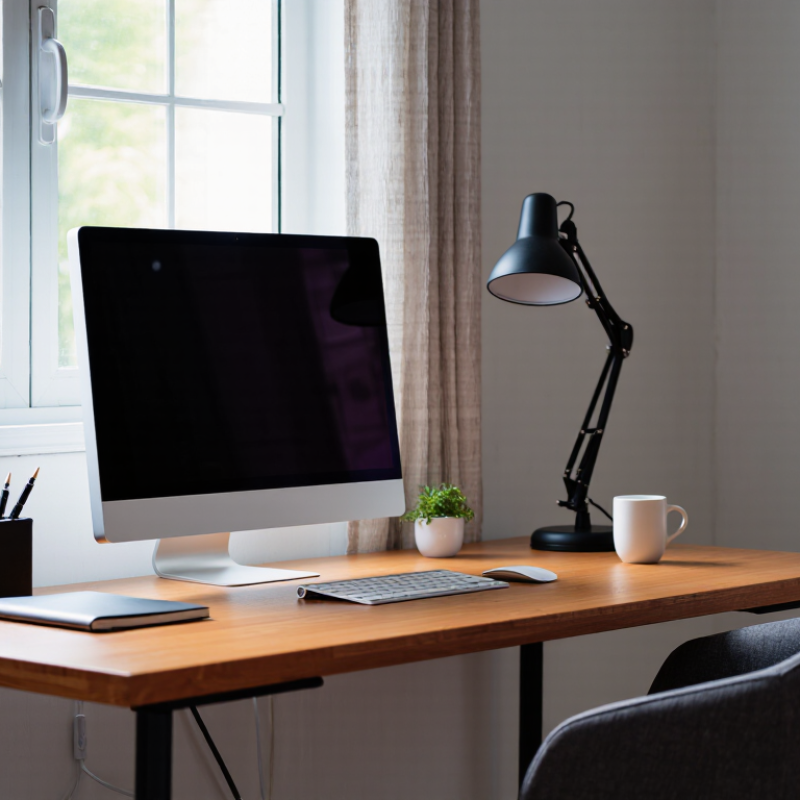
Workstation lighting changes how comfortably we read, type, and sustain attention. In my workspace, harsh overhead light caused eye strain before lunch. A softer arrangement made long editing sessions feel less tiring.
Place the desk near a window, but keep the screen perpendicular to it. This reduces reflections and uneven brightness. Use a diffused task lamp for paperwork. Aim its light at the page, not your eyes. Keep the monitor slightly brighter than the surrounding wall, never dramatically brighter. Small adjustments matter.
Watch the shadows.
A practical target is around 300 to 500 lux for ordinary desk work, although personal needs differ. People who write by hand may prefer stronger task lighting. Those using glossy screens may need less direct light. A neutral white tone can support alertness without feeling overly cold. Test it at different times of day.
Clean dusty shades regularly. They quietly reduce useful light. Cover bright indicator lights that distract you. Take brief distance-viewing breaks, especially during detailed work. I still forget this when deadlines tighten, which shows that good lighting cannot replace healthy habits. Measure comfort by noticing squinting, glare, dry eyes, and frequent posture changes. A lighting setup should adapt to the task, the room, and the person using it.
Before changing a lamp, assess the whole workstation. Sit in your usual position for ten minutes. Notice whether daylight strikes your screen, hands, or eyes directly. Glare often appears as pale reflections, not obvious brightness. Look closely. A bright window behind the monitor can create constant eye strain. Light from behind you may cast a shadow across paperwork and keyboards.
Check the screen at different times of day. Morning light, cloudy skies, and late afternoon sun can create very different conditions. Reduce screen brightness if the display looks like a light source. Increase room lighting if the screen feels harsh against a dark background. Keep the monitor away from direct window reflections, and adjust its height to reduce awkward head movements. Your eyes should not work harder than necessary.
A useful assessment also includes color and contrast. Cool, intense light may feel alerting, but it can seem uncomfortable during long tasks. Warm, even light may support calmer work, though it can reduce visual clarity for detailed documents. I once blamed a dim desk lamp for fatigue, then noticed the real problem was a bright hallway behind my chair. That mistake changed my checking routine. I now inspect the view behind the workstation, not only the desk surface. Lighting assessments are rarely perfect on the first attempt. Record where shadows fall, when headaches begin, and which tasks become difficult. Small observations often reveal the practical problem.
Good workstation lighting balances visibility, comfort, and concentration. In my experience, a layered setup works better than one powerful lamp. Combine soft ceiling light, focused task lighting, and limited daylight. Place the main light beside your screen, not directly behind it. This reduces reflections and harsh facial shadows. Keep the monitor away from bright windows when possible.
Tip 1: Choose a neutral-white light around 3500K to 4500K for detailed tasks. Warmer light can feel relaxing, but it may reduce alertness during long work sessions. Cooler light can improve visual clarity, yet excessive blue tones may feel tiring at night. I once used a very cool desk lamp and noticed more eye strain than expected. Personal comfort still matters.
Tip 2: Adjust brightness until printed text and screen text appear equally easy to read. Your desk should not look dramatically brighter than the surrounding room. Use curtains or blinds to soften direct sunlight. Tip 3: Select a lamp with adjustable direction and intensity. Aim it at documents, not your eyes or monitor. Avoid visible bulbs. They create glare. Check the setup at different times of day, because morning and afternoon light can behave differently. I still find this step easy to overlook.
Choosing the Right Light Sources, Colors, and Brightness Levels
The chart shows practical target illuminance levels for common workstation activities. General office and computer work typically require around 300–500 lux, while detailed tasks such as technical drawing may require up to 1,000 lux. Use diffuse light, reduce screen glare, and combine ambient lighting with adjustable task lighting for greater visual comfort.
10 Workstation Lighting Tips for Better Productivity
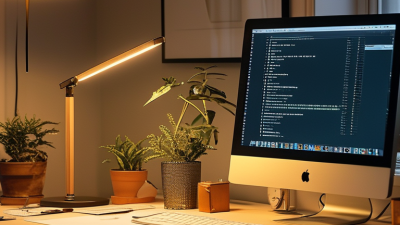
Position your desk beside a window, not directly in front of it. Side lighting reduces screen reflections and keeps daylight within your peripheral vision. Close blinds halfway when sunlight creates bright patches. Keep the monitor perpendicular to the window. Place a diffused task lamp on your non-writing side. Aim it at paper, not your eyes. Use a shade to soften the beam. Choose an adjustable lamp for changing tasks and times.
Set ambient lighting evenly across the room. Avoid a bright desk surrounded by dark walls. ISO 8995-1 commonly specifies 500 lux for office reading, writing, and computer work. It also supports a colour-rendering index of at least 80. European lighting guidance recommends limiting glare, often using a unified glare rating below 19. These values are useful targets, not magic rules. Measure near the work surface, then check your screen from a seated position.
Natural light affects more than visibility. A peer-reviewed study in the Journal of Clinical Sleep Medicine reported that workers with windows slept about 46 minutes longer per night. Keep daylight available when possible, but control heat and glare. I still see people place lamps behind monitors, creating harsh reflections. That mistake is easy to miss. Test the setup at 9 a.m., noon, and late afternoon. Your eyes may disagree with the light meter. Small adjustments matter.
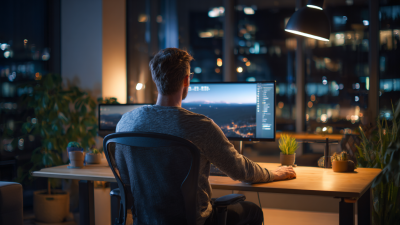
Comfortable workstation lighting begins with adjustment, not expensive equipment. Place your desk beside a window, rather than directly in front of it. Side light reduces reflections on the screen. Use curtains to soften harsh midday sunlight. Keep a steady layer of room lighting after sunset. A dark room around a bright monitor can strain your eyes.
Add a task light for reading and handwriting. Aim it toward the desk, below eye level. Do not point it at your face or screen. Choose a neutral, comfortable color temperature for long work periods. Reduce screen brightness until white areas resemble nearby paper. Increase text size instead of leaning closer. I often forget this last step. My shoulders notice.
Dust light covers, bulbs, and monitor surfaces every week. Small marks scatter light and create distracting patches. Check the lamp position when your work changes. A light that suited drawing may cause glare during video calls. Adjust brightness after cloudy mornings and during winter afternoons. Watch for squinting, dry eyes, or a tight forehead. These signs deserve attention, not dismissal. A short break can reveal whether lighting caused the discomfort. Record what you changed, even briefly. The perfect setup may not stay perfect.
| No. | Lighting Tip | Recommended Practice | Useful Data or Target | Comfort and Productivity Benefit | Maintenance Check |
|---|---|---|---|---|---|
| 1 | Set adequate task illumination | Use a balanced combination of general room lighting and adjustable task lighting for reading, writing, and screen-based work. | 300–500 lux is a common target range for routine office tasks. | Provides enough light for detailed work without forcing the eyes to adapt constantly to a dim surface. | Measure the desk surface with a light meter after furniture or fixture changes. |
| 2 | Reduce screen glare | Place monitors at right angles to windows and bright light sources. Avoid positioning a screen directly opposite a window. | Keep direct reflections out of the central viewing area; use blinds or shades when sunlight creates reflections. | Helps limit squinting, awkward posture, visual fatigue, and loss of screen contrast. | Inspect the screen from the normal seated position at different times of day. |
| 3 | Use adjustable task lighting | Choose a movable lamp or adjustable fixture so the beam can be aimed at documents without shining into the eyes or screen. | Position the light beside the dominant hand when possible; use a diffuser to soften the beam. | Allows users to adapt lighting to their task, eyesight, and time of day. | Check that joints, switches, and shades still hold their selected position. |
| 4 | Balance brightness across the workstation | Avoid a very bright desk surrounded by a dark room, or a bright background behind a dim screen. Use layered lighting where necessary. | Keep the visual field reasonably uniform; large brightness contrasts should not dominate the user’s normal view. | Reduces repeated pupil adjustment and supports more comfortable transitions between the screen, paperwork, and room. | Review the workstation from seated eye level rather than judging only from the ceiling. |
| 5 | Select a comfortable color temperature | Use neutral white light for general office work and choose a consistent color appearance across nearby fixtures. | 3,000–4,000 K is a practical range for many office environments; warmer light is often preferred for relaxed areas. | Creates a visually comfortable atmosphere while maintaining clear task visibility. | Replace mismatched lamps that make adjacent areas appear noticeably different in color. |
| 6 | Choose good color rendering | Use light sources that reproduce document colors, skin tones, and visual details naturally. | A color-rendering index of CRI 80 or higher is commonly suitable for general office work. | Improves visual clarity and makes printed charts, diagrams, and color-coded information easier to interpret. | Check product specifications when replacing lamps or luminaires; avoid mixing visibly incompatible sources. |
| 7 | Control daylight throughout the day | Use blinds, curtains, or adjustable shades to manage low-angle morning and afternoon sunlight while preserving useful natural light. | Adjust window coverings when direct sunlight reaches the screen or creates strong patches on the desk. | Limits glare and overheating while supporting a pleasant connection with outdoor daylight. | Clean and test shade controls at least twice a year and after seasonal daylight changes. |
| 8 | Prevent flicker and visual disturbance | Use properly maintained fixtures and compatible lamps, drivers, and dimmers. Replace lights that visibly flicker or pulse. | Visible flicker is a warning sign; investigate buzzing, intermittent output, or changes that occur when a dimmer is used. | Reduces distraction and may help prevent discomfort for people sensitive to fluctuating light. | Record recurring flicker and have electrical components inspected by a qualified professional. |
| 9 | Keep fixtures and surfaces clean | Dust ceiling fixtures, task-lamp diffusers, windows, and reflective surfaces using the manufacturer’s safe cleaning method. | Schedule a visual inspection monthly and clean when dust, haze, or darkening is noticeable. | Maintains light output and prevents uneven illumination caused by dirty lenses or blocked windows. | Disconnect portable fixtures before cleaning and never use liquid near energized electrical parts. |
| 10 | Replace failing lamps and review the setup | Replace lamps that are dimming, changing color, buzzing, or failing, and reassess the layout after desk or monitor relocation. | Perform a workstation lighting review at least annually and whenever the room layout or work task changes. | Keeps lighting consistent and prevents small problems from becoming long-term sources of discomfort. | Maintain a simple log of replacements, measurements, glare complaints, and corrective actions. |
© 2025 EXCELSIUS MEDICAL All rights reserved
Taiwan Office
2F., No. 18, Ln.31, Sec.1, Huandong Rd.,
Xinshi Dist., Tainan City 744, Taiwan, R.O.C.
German Office
Zeppelinstr. 4, Haus 3&4,
D-85399 Hallbergmoos, Germany